코딩 기록/Kotlin
Kotlin 안드로이드 화면에 WebView이용해서 html 문서 연결하고 구현화면 버튼 클릭시 알림창 띄우기
NomadHaven
2022. 2. 7. 17:52
파일 및 폴더 구성
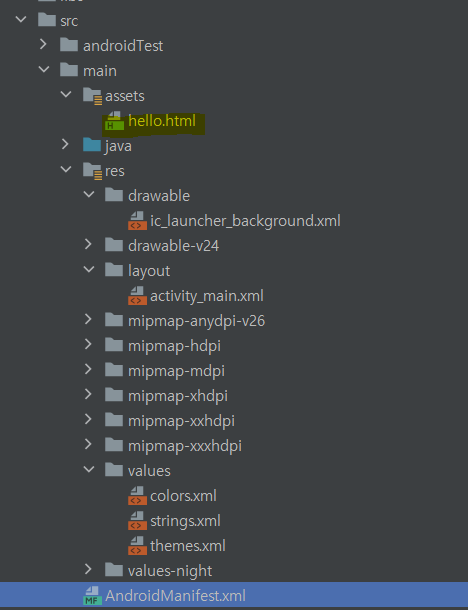
main 폴더에 assets폴더 생성.
생성된 assets폴더 우클릭 >디렉터리를 다음으로 표시 > 리소스루트 로 설정
설정된 assets 폴더에 html파일 저장
assets폴더에 저장된 hello.html 파일
<!DOCTYPE html>
<html>
<head>
<meta charset="UTF-8">
<title>안녕</title>
<script type="text/javascript">
window.onload=function(){
var c = document.getElementById('c');
c.style.background='yellow';
};
</script>
</head>
<body>
<div id="c">
Hello, 안녕하세요!! 반갑습니다!!
</div>
<hr size="1" width="90%">
<input type="button" value="경고창 보기" onclick="alert('경고창 보기');">
</body>
</html>
AndroidManifest.xml
<?xml version="1.0" encoding="utf-8"?>
<manifest xmlns:android="http://schemas.android.com/apk/res/android"
          package="com.example.sample22">
    <uses-permission android:name="android.permission.INTERNET" />
    //인터넷 연결을 허용하는 permission 코드 삽입

    <application
            android:allowBackup="true"
            android:icon="@mipmap/ic_launcher"
            android:label="@string/app_name"
            android:roundIcon="@mipmap/ic_launcher_round"
            android:supportsRtl="true"
            android:theme="@style/Theme.Sample22">
        <activity
                android:name=".MainActivity"
                android:exported="true">
            <intent-filter>
                <action android:name="android.intent.action.MAIN"/>

                <category android:name="android.intent.category.LAUNCHER"/>
            </intent-filter>
        </activity>
    </application>

</manifest>
activity_main.xml
<?xml version="1.0" encoding="utf-8"?>
<androidx.constraintlayout.widget.ConstraintLayout
        xmlns:android="http://schemas.android.com/apk/res/android"
        xmlns:tools="http://schemas.android.com/tools"
        xmlns:app="http://schemas.android.com/apk/res-auto"
        android:layout_width="match_parent"
        android:layout_height="match_parent"
        tools:context=".MainActivity">

    <WebView
            android:id="@+id/webView"
            android:layout_width="match_parent"
            android:layout_height="match_parent"
            app:layout_constraintTop_toTopOf="parent"
            app:layout_constraintStart_toStartOf="parent"
            app:layout_constraintEnd_toEndOf="parent"
            app:layout_constraintBottom_toBottomOf="parent"/>
</androidx.constraintlayout.widget.ConstraintLayout>
MainActivity.kt
package com.example.sample22

import androidx.appcompat.app.AppCompatActivity
import android.os.Bundle
import android.webkit.WebChromeClient
import android.webkit.WebView

class MainActivity : AppCompatActivity() {
    override fun onCreate(savedInstanceState: Bundle?) {
        super.onCreate(savedInstanceState)
        setContentView(R.layout.activity_main)

        val webView = findViewById<WebView>(R.id.webView)

/*
        //1.url
        webView.loadUrl("https://m.naver.com")

        //2.html코드 작성
      	 val html = "<html><head><meta charset=\"UTF-8\"></head><body>Hello World! 안녕하세요!</body></html>"
        webView.loadData(html, "text/html", "UTF-8")
*/
        //3.html 문서 호출
        webView.loadUrl("file:///android_asset/hello.html")//html파일의경로통해 해당 파일 호출

        webView.settings.javaScriptEnabled=true

        webView.webChromeClient = WebChromeClient()


    }
}
결과화면

